Knowledge Base
Upload your documents, FAQs, product guides, and policies. Your AI reads them and uses the knowledge to answer customer questions accurately — no hallucinations, no generic responses.
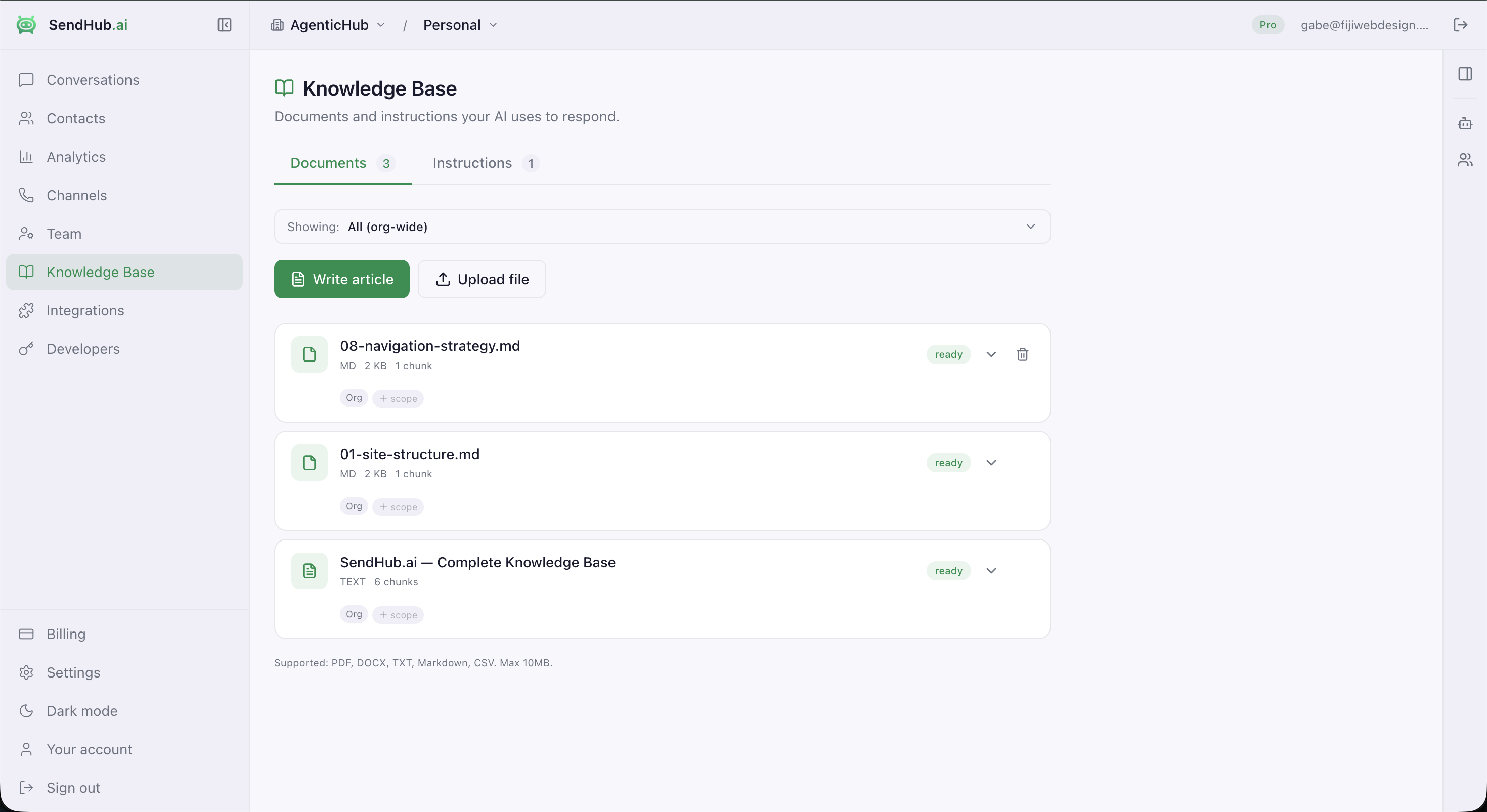
How It Works
- Upload documents — PDFs, text files, or paste content directly
- AI indexes automatically — extracts text and makes it searchable
- Conversations get context — when a customer asks a question, the AI checks your knowledge base first
- Accurate answers — replies cite your content, not generic AI knowledge
Two Types of Knowledge
Documents
Upload files that contain information your AI should know:
- Product catalogs and pricing
- FAQs and help articles
- Shipping and return policies
- Company information and history
- Technical documentation
Supported formats: PDF, TXT, DOCX, and plain text paste.
The AI extracts text from documents and includes relevant sections when answering customer questions.
Instructions
Custom rules that shape how your AI behaves:
- “Always greet customers by name if available”
- “Never discuss competitor products”
- “If asked about refunds, direct to [email protected]”
- “Respond in formal English for business inquiries”
- “Include our website link when discussing pricing”
Instructions are shorter, directive rules. Documents are longer reference material.
Live Integration Data
Your AI doesn’t just read static documents — it pulls real-time data from connected integrations.
When a customer asks “Where’s my order?” or “Do you have this in blue?”, the AI already knows. No manual uploads, no stale data.
| Integration | What the AI sees | Example question it handles |
|---|---|---|
| Shopify | Products, variants, prices, inventory, customer orders, tracking | ”Is the black hoodie in stock in XL?” |
| HubSpot | Contacts, deals, company info, ticket history | ”What’s the status of my support ticket?” |
| WooCommerce | Products, orders, shipping status | ”When will my order arrive?” |
This data is injected into the AI context alongside your documents and instructions — the AI uses all of it together to give accurate, personalized answers.
Why this matters:
- Customers get real answers about their orders and your products — not generic responses
- Support volume drops because the AI resolves product and order questions without a human
- No manual data entry or CSV imports — connect once, data stays current
E-commerce businesses using AI with live product data see a 25% cart recovery rate and 60% reduction in “where’s my order” tickets compared to rule-based bots.
Scope & Cascading
Knowledge applies at three levels, cascading down:
| Level | Applies to | Use for |
|---|---|---|
| Organization | All channels and businesses | Company-wide FAQs, brand guidelines |
| Business | All channels in that business | Business-specific products, policies |
| Channel | That channel only | Channel-specific greetings, promotions |
A channel inherits knowledge from its business and organization. Channel-level knowledge takes priority when there’s a conflict.
Adding Knowledge
Add Your Website
Paste any URL and the AI extracts every page on your site automatically. Each page becomes a knowledge base document — your product pages, about page, FAQ, pricing, blog posts — all indexed and searchable by the AI in seconds.
- Go to Knowledge Base → click Add URL
- Paste your website URL (e.g.
yourstore.com) - SendHub crawls the page and discovers linked pages on your domain
- All pages are extracted and saved as documents — AI starts using them immediately
No copy-pasting, no file uploads. Your entire website becomes your AI’s knowledge base.
Connect Your Tools
When you connect an integration, its data becomes part of your AI’s knowledge automatically — no manual setup.
| Integration | What gets added | Updates |
|---|---|---|
| Shopify | Products, variants, prices, inventory, customer orders, tracking | Real-time — AI always sees current data |
| HubSpot | Contacts, deals, company info, tickets | Synced on every conversation |
| WooCommerce | Products, orders, shipping status | Real-time |
Your AI combines this live data with your documents and instructions. A customer asking about a product gets the current price from Shopify and your return policy from your FAQ — in one answer.
Upload Files & Write Articles
- Go to Knowledge Base in the sidebar
- Click Write Article to create content directly, or Upload File for existing documents
- Set the scope (org, business, or channel)
- Save — AI starts using it immediately
Supported formats: PDF, DOCX, TXT, Markdown, CSV (max 10MB)
Via API
// Add a document
await sendhub.from('ai_documents').insert({
  org_id: 'your-org-id',
  title: 'Shipping Policy',
  raw_text: 'Free shipping on orders over $50...',
  status: 'ready',
})

// Add an instruction
await sendhub.from('ai_instructions').insert({
  org_id: 'your-org-id',
  content: 'Always mention our 30-day return policy',
  scope: 'all',
  sort_order: 1,
})
How the AI Uses Knowledge
When a customer sends a message, the AI assembles context from every available source:
Customer: "Can I return the blue hoodie I ordered last week?"
        |
        v
AI assembles context:
  1. Instructions — "Always mention our 30-day return policy"
  2. Documents — Returns policy PDF, FAQ article
  3. Shopify — Order #1847: Blue Hoodie, delivered March 21
  4. Conversation history — previous messages
        |
        v
AI replies: "Hi! Your Blue Hoodie from order #1847
            was delivered on March 21. You're within
            our 30-day return window. I can start
            a return for you — return shipping is free."
The AI combines every connected source in a single reply. A customer asking about a return gets your policy (document), their specific order (Shopify), their CRM notes (HubSpot), and your instructions — all in one answer.
Multiple live sources, one intelligent answer
Every connected integration becomes part of your AI's knowledge — in real time. The AI doesn't just check one source; it pulls from all of them simultaneously.
Shopify + KB
AI answers product questions using your catalog and FAQ docs together
HubSpot + Shopify
AI sees CRM deal stage and order history to qualify and support in one flow
Any combination
Documents + instructions + any connected integration — all in context
The AI searches your knowledge base semantically — it understands what the customer is asking and pulls the most relevant documents, not just keyword matches. A character budget (50,000 chars) keeps responses fast and focused, even with large knowledge bases.
Best Practices
- Keep documents focused — one topic per document works better than one massive file
- Use clear titles — the AI uses titles to decide which documents are relevant
- Update regularly — change a document and the AI picks it up on the next message
- Test with real questions — send test messages to verify the AI uses your knowledge correctly
- Combine instructions + documents — instructions for behavior rules, documents for reference material
Troubleshooting
AI doesn’t use my knowledge
- Check that the document status is “ready” (processing can take a moment)
- Verify the scope matches the channel you’re testing on
- Make sure the document contains the information the question is about
AI gives wrong answers
- Check for conflicting information across documents
- Add a specific instruction to override: “When asked about X, always say Y”
Document won’t upload
- Maximum file size: 10MB
- Supported formats: PDF, TXT, DOCX
- If a PDF has scanned images (not text), the AI can’t read it