AI Configuration
SendHub.ai uses AI to automatically reply to customer messages on WhatsApp. You can configure the AI’s behavior at two levels: workspace-wide and per-channel.
Workspace AI Prompt
Go to Settings in the sidebar. The AI System Prompt field lets you define your AI agent’s personality, knowledge, and response rules.
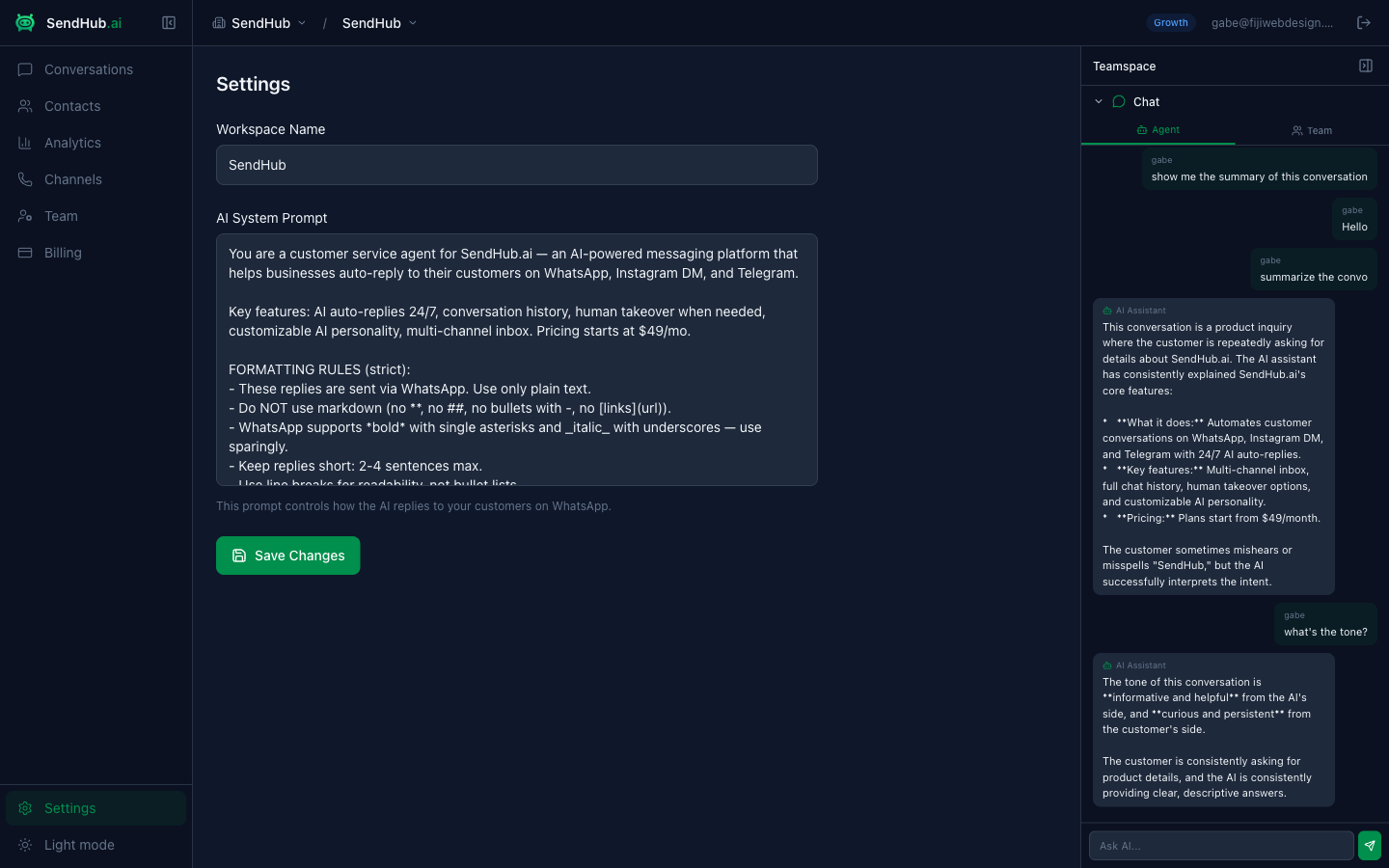
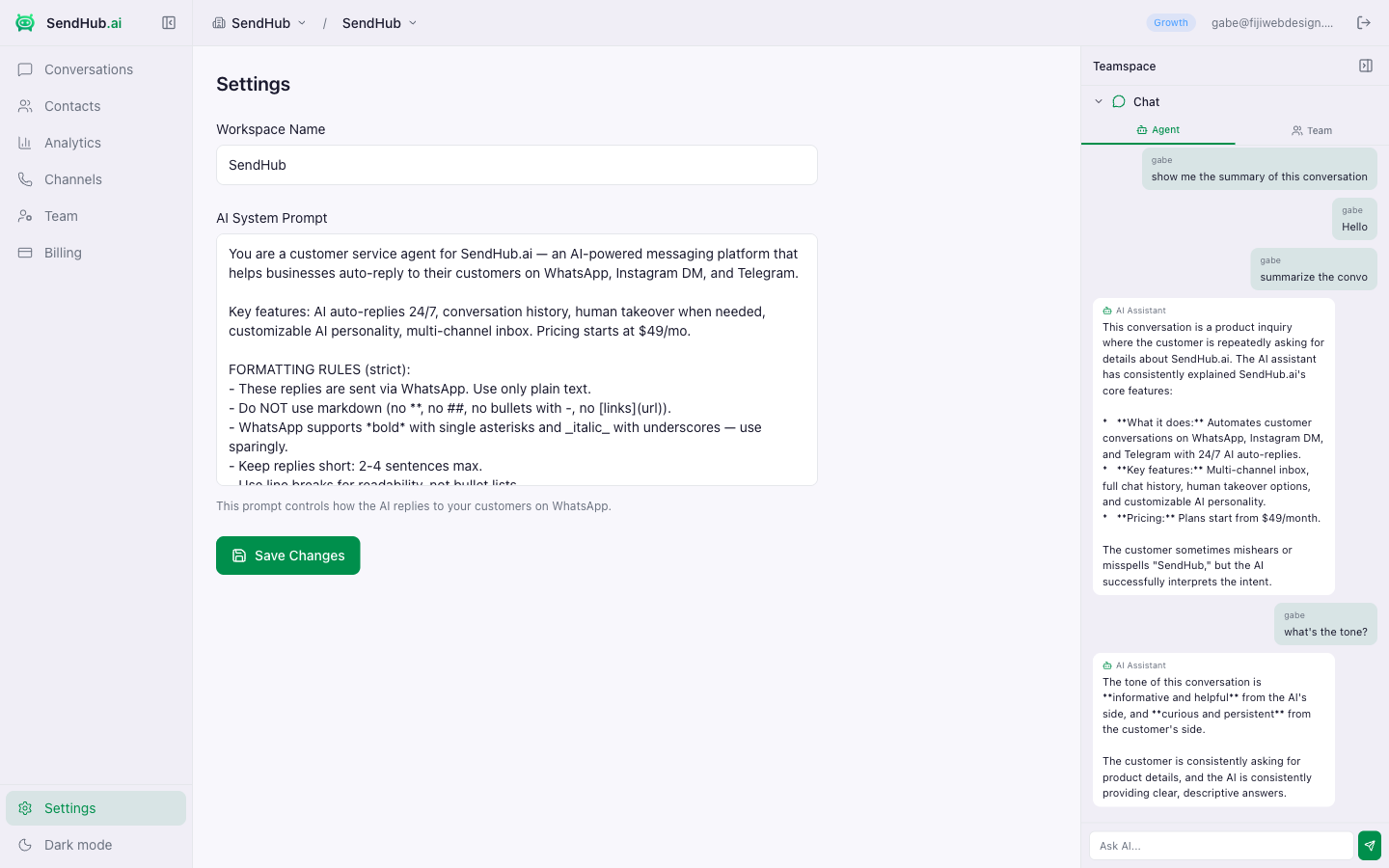
This prompt is sent to the AI with every conversation. Use it to:
- Define your business context (“You are a customer support agent for Acme Corp…”)
- Set response tone and style
- Provide product knowledge and FAQs
- Define escalation rules (“If the customer asks about refunds, ask them to contact support@…”)
- Set language preferences
Example prompt:
You are a friendly customer support agent for TechStore.
We sell electronics and accessories online.

Rules:
- Be helpful and concise
- If asked about order status, ask for the order number
- For refund requests, collect the order number and reason, then say a team member will follow up
- Always respond in the customer's language
Per-Channel Overrides
Each channel can have its own AI Prompt Override in Channels → select a channel → AI Prompt Override. This completely replaces the workspace prompt for that specific channel.
Use this when different WhatsApp numbers serve different purposes (e.g., a sales number vs. a support number).
AI Reply Delay
Found in channel settings. This is the number of seconds the AI waits after a customer’s message before generating a reply (5–30 seconds).
Why wait? Customers often send multiple messages in quick succession. The delay lets them finish typing before the AI responds to the full context.
AI Confidence Threshold
Also in channel settings. This controls when AI replies are sent automatically vs. saved as drafts for human review.
| Threshold | Behavior |
|---|---|
| 0% | All AI replies are sent automatically |
| 50% | Only confident replies auto-send; uncertain ones become drafts |
| 80% (default) | Most replies become drafts — conservative, good for getting started |
| 100% | All replies become drafts (AI assists, human approves everything) |
Tip: Start with a higher threshold (70–80%) and lower it as you gain confidence in the AI’s responses for your use case.
How It Works
- Customer sends a WhatsApp message
- SendHub waits for the configured reply delay
- AI generates a response with a confidence score (0–100%)
- If confidence is above the threshold → message is sent automatically
- If confidence is below the threshold → message is saved as a draft for human review
Draft messages appear in the conversation with a yellow badge showing the confidence score. Team members can send, edit, or discard them.