Shopify Integration
Connect your Shopify store to SendHub and let AI handle customer conversations on WhatsApp — order status inquiries, product questions, shipping updates, abandoned cart recovery, and more.
Dashboard
Manage your Shopify integration from Integrations > Shopify in the SendHub dashboard.
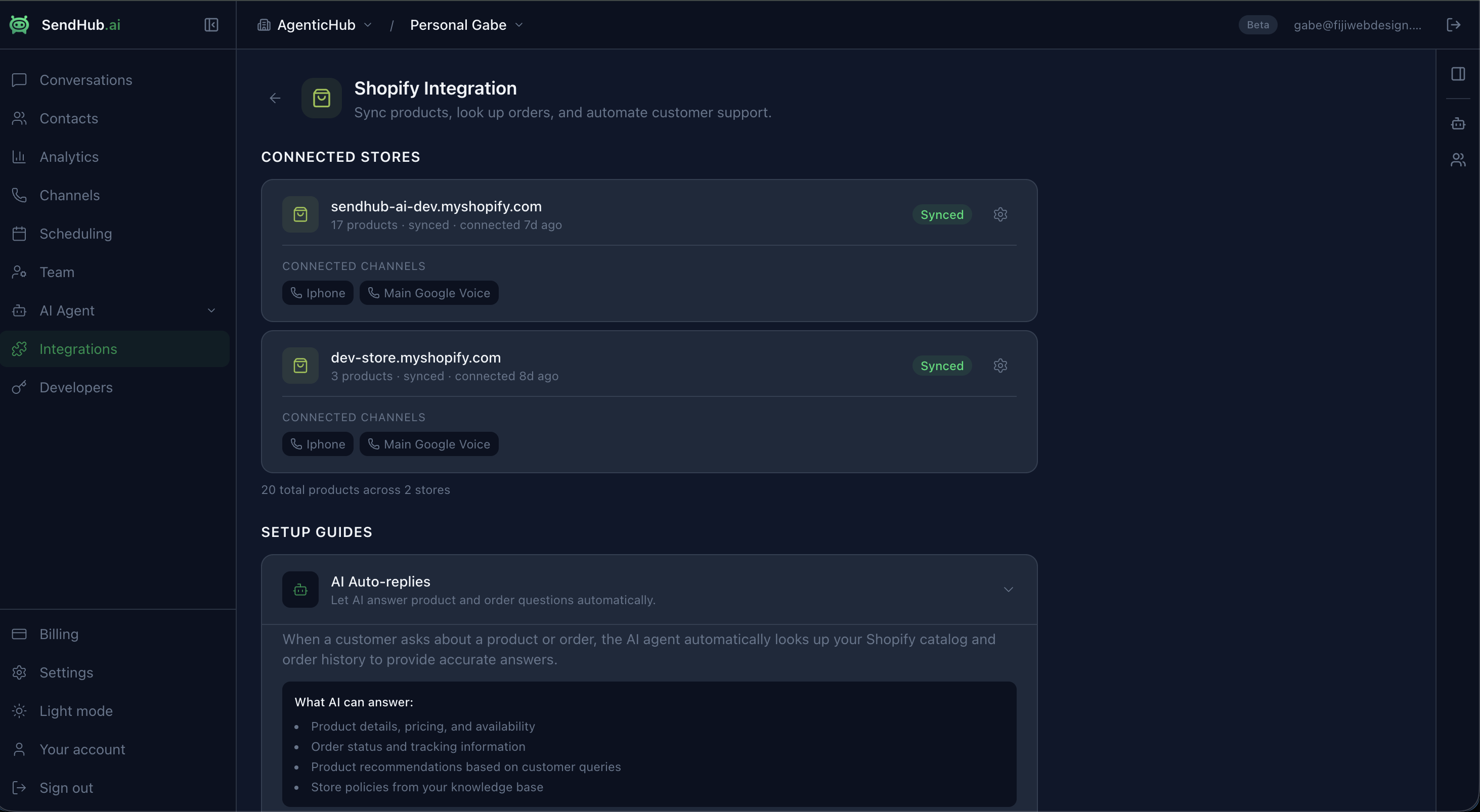
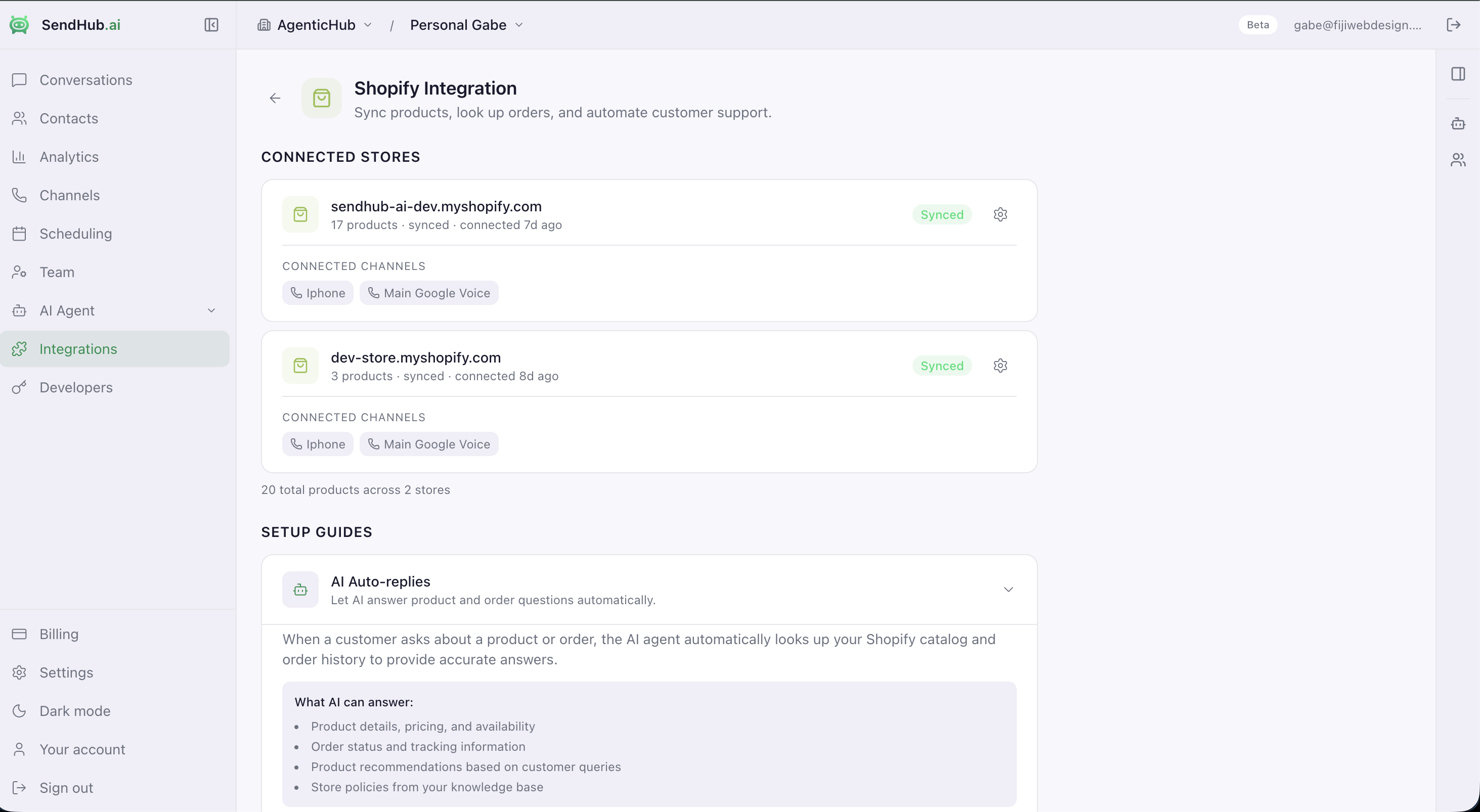
When connected, you’ll see:
- All connected Shopify stores with product count and sync status
- Connected WhatsApp and email channels per store
- Setup guides for AI auto-replies, chat widget, and WhatsApp button
- Quick link to configure the app in Shopify admin
What You Get
AI-Powered Customer Support
- Order status & tracking — customers ask “where’s my order?” and AI replies with real-time tracking info from Shopify fulfillment data
- Product recommendations — AI searches your catalog semantically and suggests relevant products in conversation
- Customer context — AI sees the customer’s order history, lifetime value, and purchase patterns for personalized replies
- Return & refund handling — AI checks order status and guides customers through your return policy
Commerce Automation
On email, the Big 3 flows are Welcome / Cart / Browse. On WhatsApp, the hierarchy inverts: Post-Purchase / Checkout / Cart leads. Why? WhatsApp’s 95%+ read rate turns transactional updates into genuine LTV drivers, not utility pings — 91% of online adults enjoy receiving order updates via messaging, and 73% prefer it as their main business channel.
SendHub ships 10 pre-built automations out of the box (no configuration beyond enable + opt-in source):
Tier 1 Essentials
- Post-Purchase Order Updates (keystone) — order confirmed → shipped → out for delivery → delivered. Kills WISMO tickets, builds opt-in trust.
- Abandoned Checkout Recovery — 30-min reminder + 4-hour social proof + 24-hour AI-decided discount. 20–30% recovery rate.
- Abandoned Cart Recovery — 1-hour reminder + 24-hour scarcity nudge.
- Welcome Series — greet → AI qualify (best-seller recommendation) → first-purchase incentive.
- COD Order Confirmation — “Reply YES within 2h or auto-cancel” — cuts fake-order rates 20–40% in India/LATAM/MENA/SEA.
Tier 2 Growth Pack
- Post-Purchase Cross-Sell — AI reads order line items + recommends complementary SKUs 2 days after delivery.
- Lapsed Customer Winback — 60-day no-purchase trigger + 3-step sequence.
- Back-in-Stock Notification — variant inventory 0 → >0 + subscriber notification.
- Review Request — AI goal collects 1–5 rating 5 days after delivery.
- Replenishment Reminder — depletion-date estimator for consumables.
Activate any of these from Automations in the SendHub dashboard. Each template ships with prewritten Meta-approved copy and Shopify variable bindings; merchants edit, submit to Meta for approval, pick an opt-in source (Marketing only), and enable.
Product Catalog
- Real-time product sync — products, variants, pricing, and inventory sync automatically via webhooks
- Semantic search — Cmd+K search across your entire catalog with AI-powered matching (finds products even when customers use different words)
- Knowledge Base integration — Shopify products appear as a dedicated tab in AI Agent > Knowledge
Setup
Step 1: Install the App
Go to Integrations > Shopify in the SendHub dashboard and click Install on Shopify.
- Install the SendHub: WhatsApp AI Agent app from the Shopify App Store
- Authorize the app to access your store data (products, orders, customers)
- The app opens in your Shopify admin
Step 2: Link Your Organization
After installing, the app prompts you to connect your SendHub organization:
- Click Connect to SendHub in the Shopify app
- Sign in to your SendHub account (or create one)
- Select your organization (if you have multiple)
- Your store is now linked — products and orders begin syncing
Step 3: Verify Sync
- Go to Integrations in the SendHub dashboard — the Shopify section shows sync status and product count
- Go to AI Agent > Knowledge > Shopify tab to see your products and order counts
- Use Cmd+K to search products with semantic search
Features in Detail
AI Auto-Replies
When a customer messages you on WhatsApp, the AI automatically looks up relevant Shopify data to provide accurate answers.
Setup:
- Go to AI Agent > Settings
- Enable “Auto-send replies” for your WhatsApp channel
- Set confidence threshold (recommended: 80%)
- The AI uses your Shopify product and order data in every conversation
What AI can answer:
- Product details, pricing, variants, and availability
- Order status and tracking information
- Product recommendations based on customer queries
- Store policies from your knowledge base
Example conversations:
Customer: Where’s my order #1042?
AI: Your order #1042 shipped on March 22 via FedEx. Tracking shows it’s currently in transit and expected to arrive March 27. Here’s your tracking link: [link]
Customer: Do you have the blue hoodie in XL?
AI: Yes! The Classic Blue Hoodie is available in XL for $59. It’s one of our best sellers. Would you like me to send you the link to order?
Customer: I want to return the shoes I bought
AI: I can help with that. I see your order #1038 for the Running Shoes ($89). Our return policy allows returns within 30 days. I’ll connect you with our team to process this.
Live Order & Customer Data
Customer data is fetched in real-time based on the customer’s WhatsApp number:
| Data | How it works |
|---|---|
| Orders | Matched by phone number or email. AI sees order number, status, total, tracking URL, and line items. |
| Products | Full catalog synced via webhooks. Updated automatically when you add, edit, or remove products in Shopify. |
| Customer profile | Name, email, order count, total spend, and tags from Shopify. |
| Fulfillment | Tracking numbers and carrier info from Shopify’s fulfillment data. |
Product Auto-Sync
Products sync automatically in real-time:
- Initial sync — all active products are imported when you connect your store
- Webhook sync — product creates, updates, and deletes are pushed to SendHub instantly
- Semantic embeddings — each product is embedded for AI-powered search, so the AI finds relevant products even when customers describe them differently
- Inventory awareness — the AI knows which products are in stock
Web Chat Widget on Shopify
Embed AI chat on your Shopify storefront so visitors can ask questions about products, orders, and more:
- Go to Widget Settings in the SendHub dashboard and copy the embed code
- In Shopify Admin: Online Store > Themes > Edit Code
- Open
theme.liquid - Paste the code before the closing
</body>tag - Save and preview your store
Or use the theme app extension:
- Go to Online Store > Themes > Customize
- Add the SendHub Chat Widget app block
- Configure colors, greeting message, and position
WhatsApp Button on Shopify
Add a floating click-to-chat button so visitors can message you directly:
- Go to WhatsApp Button Settings in the dashboard and customize the button
- Copy the embed code
- Add to
theme.liquidbefore</body>in Shopify’s theme editor
Recommended settings for Shopify stores:
- Layout: Floating pill (bottom-right)
- Pre-filled message: “Hi! I have a question about a product”
- Show on: Product pages and cart page
Abandoned Cart & Checkout Recovery
SendHub ships two distinct recovery flows out of the box — most platforms lump them together and lose the higher-intent signal.
- Abandoned Cart triggers when a customer adds an item but never starts checkout (low intent, high volume) — 1-hour reminder + 24-hour scarcity nudge.
- Abandoned Checkout triggers when a customer enters checkout but doesn’t pay (high intent, lower volume) — 30-min reminder + 4-hour social proof + 24-hour AI-decided discount based on cart value.
To activate:
- Go to Automations in the SendHub dashboard
- Pick Abandoned Cart Recovery and/or Abandoned Checkout Recovery from the gallery
- Walk the 3-step setup: review/edit message copy → pick opt-in source (Marketing requires it) → activate
- Submit the WhatsApp templates to Meta for approval (typically 24–48h)
- Once approved, toggle Live
The discount step in Abandoned Checkout uses AI to decide: free shipping if cart value > $100, 10% off below, skip if margin is too thin (configurable per merchant).
Cross-Sell & Upsell
The Post-Purchase Cross-Sell automation in Automations triggers 2 days after delivery, reads the customer’s order line items, finds complementary products via semantic catalog search, and sends a personalized recommendation message. AI-powered — no rules to write.
Order Status, Shipping & Delivery Updates
The Post-Purchase Order Updates automation is the keystone flow on WhatsApp — it sends 4 messages per order (confirmed → shipped → out for delivery → delivered), all triggered by Shopify webhooks. Activate from Automations and Meta will approve the templates within 24–48h. Each sub-message is individually toggleable so you can ship just the steps you want.
WhatsApp Product Catalog
Browse and buy products directly within WhatsApp:
- Catalog sync — your Shopify product catalog syncs to the WhatsApp Business catalog
- In-chat browsing — customers scroll through products, view images, prices, and descriptions
- Add to cart — customers build their cart entirely within WhatsApp
- In-chat checkout — address collection, payment link, and order confirmation all happen in the conversation
- Interactive product cards — rich media messages with product images, pricing, and quick-action buttons
AI Context
When the Shopify integration is active, the AI receives this context with every customer conversation:
| Context | What the AI sees |
|---|---|
| Orders | Order number, status, total, tracking URL, carrier, line items |
| Products | Name, price, description, availability, variants, tags, vendor |
| Customer | Name, email, order count, total spend, Shopify tags |
| Store | Store name, currency, shipping policies |
| Fulfillment | Tracking numbers, estimated delivery, carrier updates |
Pricing
The Shopify integration is included in all SendHub plans.
| SendHub Plan | Shopify Features |
|---|---|
| Free | Basic product sync, 50 AI replies/mo |
| Growth | Full product + order sync, 1,000 AI replies/mo, scheduling |
| Pro | Unlimited sync, 10,000 AI replies/mo, priority support |
Troubleshooting
Products not syncing
- Check that the Shopify app has the correct permissions (products, orders, customers)
- Go to Integrations and check the sync status badge
- Products should sync within seconds of changes in Shopify
AI doesn’t know about orders
- Customer’s WhatsApp number must match their Shopify customer phone number
- Verify products appear in AI Agent > Knowledge > Shopify tab
Widget not appearing on store
- Verify the theme extension is enabled in Online Store > Themes > Customize
- Check that you’ve entered a valid WhatsApp number in the widget settings
Settings gear gives OAuth error
- Run
npx shopify app deploy --allow-updatesto sync redirect URLs - Ensure the Shopify app is deployed to the correct environment
Upcoming Features
Features planned or in development based on industry best practices:
Order Lifecycle Notifications
- Automated WhatsApp messages for: order confirmed, shipped, out for delivery, delivered, refund processed
- Configurable per notification type (enable/disable, customize message)
COD Verification
- Send WhatsApp confirmation for Cash on Delivery orders with Confirm/Cancel quick-reply buttons
- Convert COD to prepaid with a payment link and small discount incentive
- Reduce return-to-origin (RTO) rate
Advanced Campaign Segmentation
- RFM (Recency-Frequency-Monetary) auto-segmentation of Shopify customers
- Segments by: last order date, order count, total spent, products purchased, location
- A/B test message templates with conversion tracking
Revenue Attribution
- Track revenue generated per campaign, per automation, per template
- Open rate, click rate, and conversion analytics per broadcast
WhatsApp Flows
- Interactive multi-step forms within WhatsApp (address collection, feedback surveys, product customization)
- Appointment booking flows
- Return/exchange request forms
Review Collection
- Automated post-delivery review request via WhatsApp
- Star rating collection inline in the conversation
- Redirect to Shopify product review page
Click-to-WhatsApp Ads
- Integration with Meta Ads Manager
- Track conversions from Click-to-WhatsApp ads through to Shopify purchase
- Campaign ROI attribution
Back-in-Stock Alerts
- Customers opt in for back-in-stock notifications on specific products
- Automatic WhatsApp alert when inventory is replenished
Share on WhatsApp
- Product page button letting customers share products with friends via WhatsApp
- Pre-formatted message with product image, price, and link