Conversations
The Conversations page is your main inbox — a real-time view of all WhatsApp conversations across your connected channels.
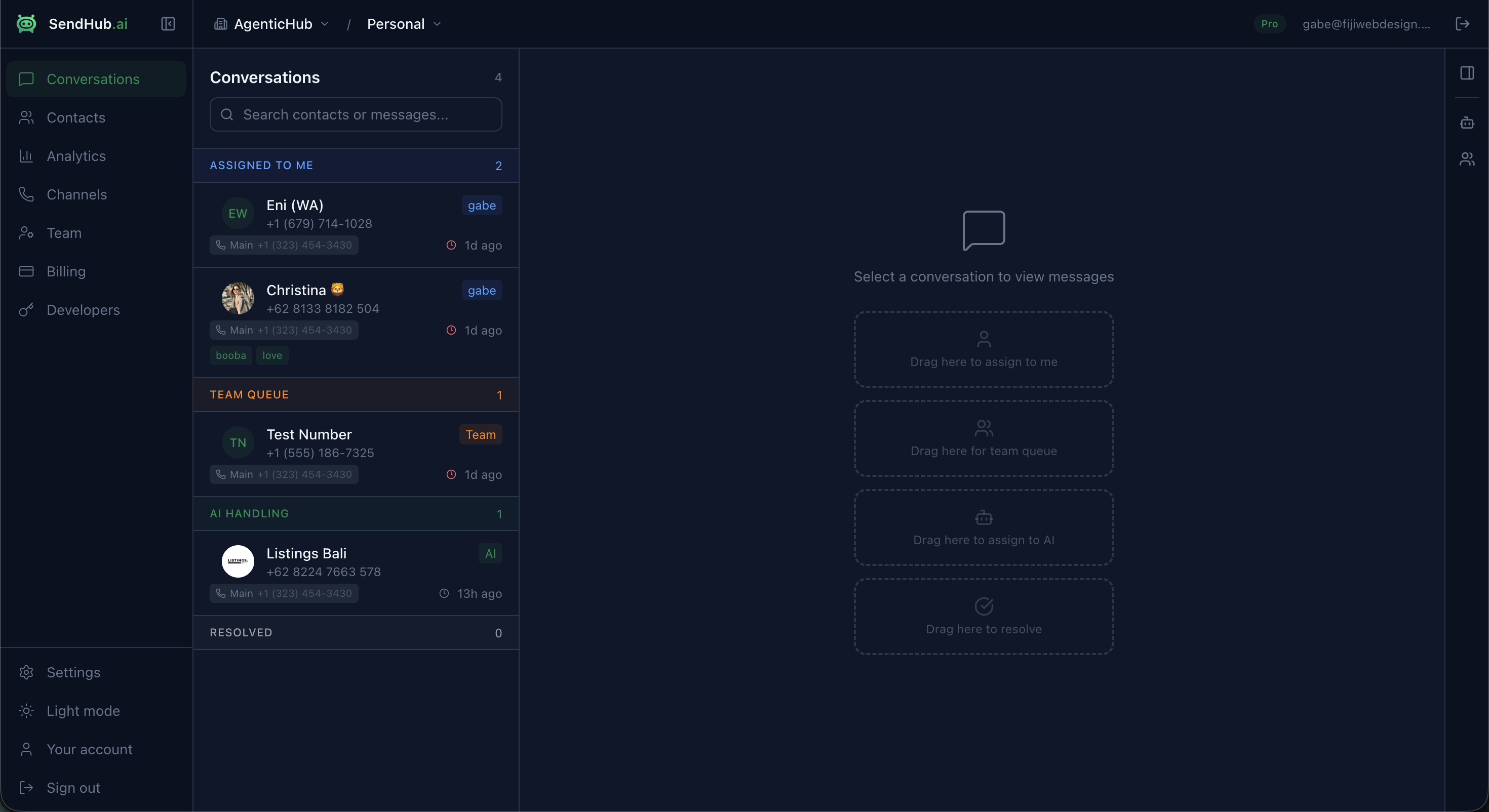
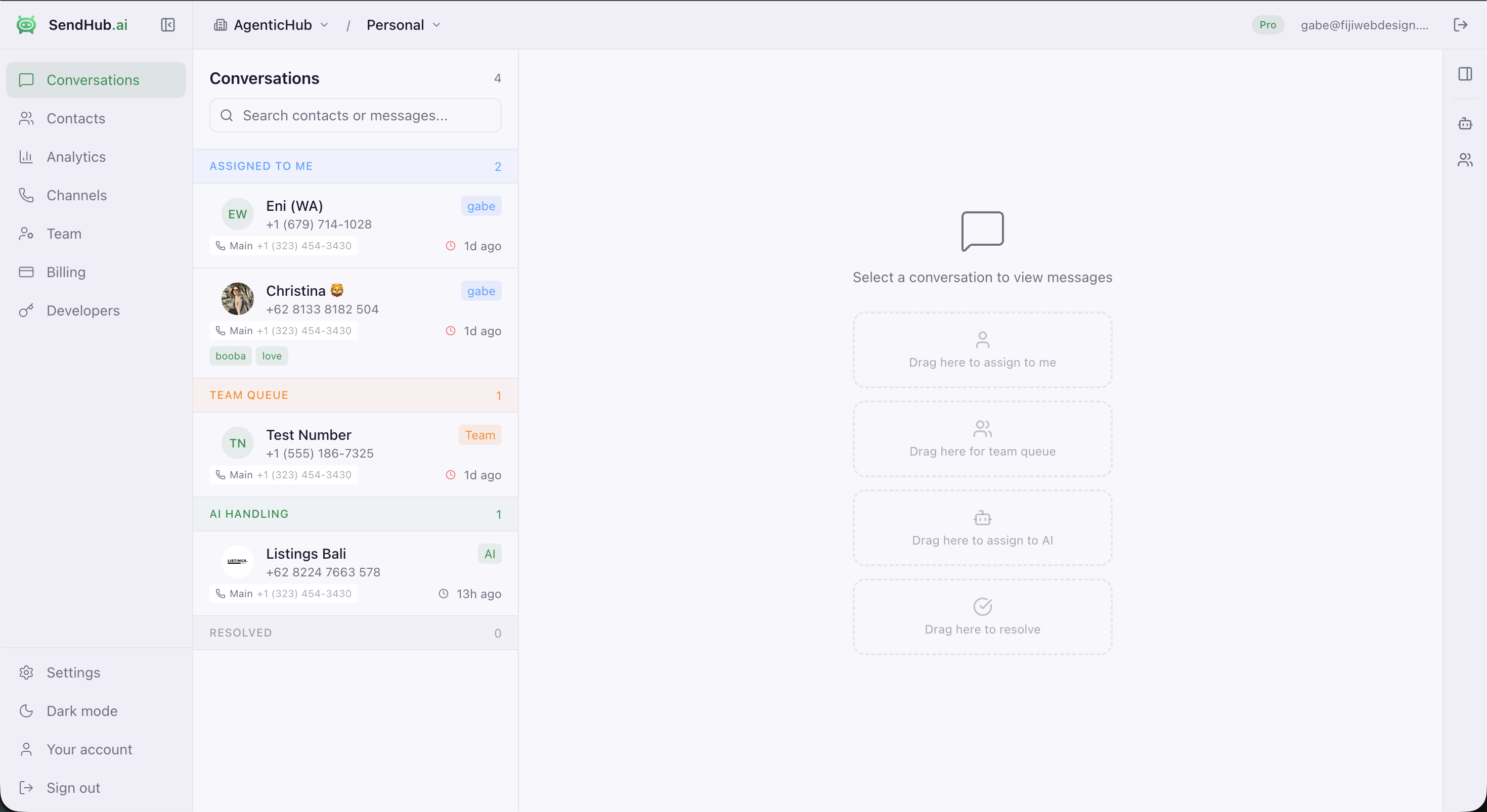
Conversation List
The left panel shows all conversations, sorted by most recent. Each conversation shows:
- Contact name or phone number
- Status badge — AI (green) or current status
- Channel — which WhatsApp number the conversation belongs to, with a phone icon
- Reply window timer — time remaining in the WhatsApp 24-hour reply window
- Tags — colored labels on the contact
- Last activity — relative timestamp
Searching
Use the search bar to find conversations by message content. Search is debounced and queries across all messages — results show which conversations contain matching messages.
Filtering
Use the status filter dropdown to show:
- All conversations
- AI Handling — managed by AI
- Assigned — assigned to a team member
- Resolved — completed conversations
Reading Messages
Click a conversation to open the message thread.
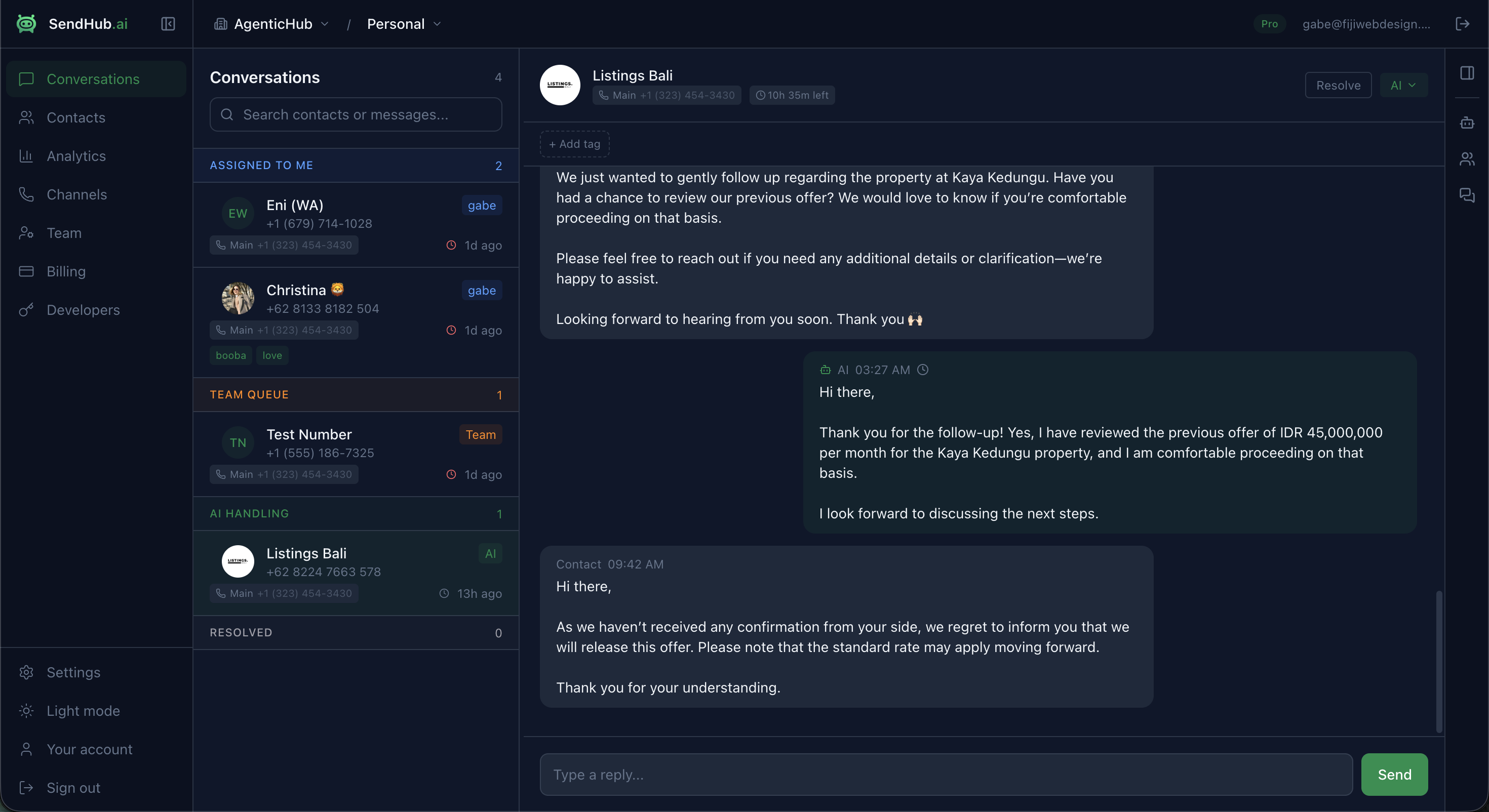
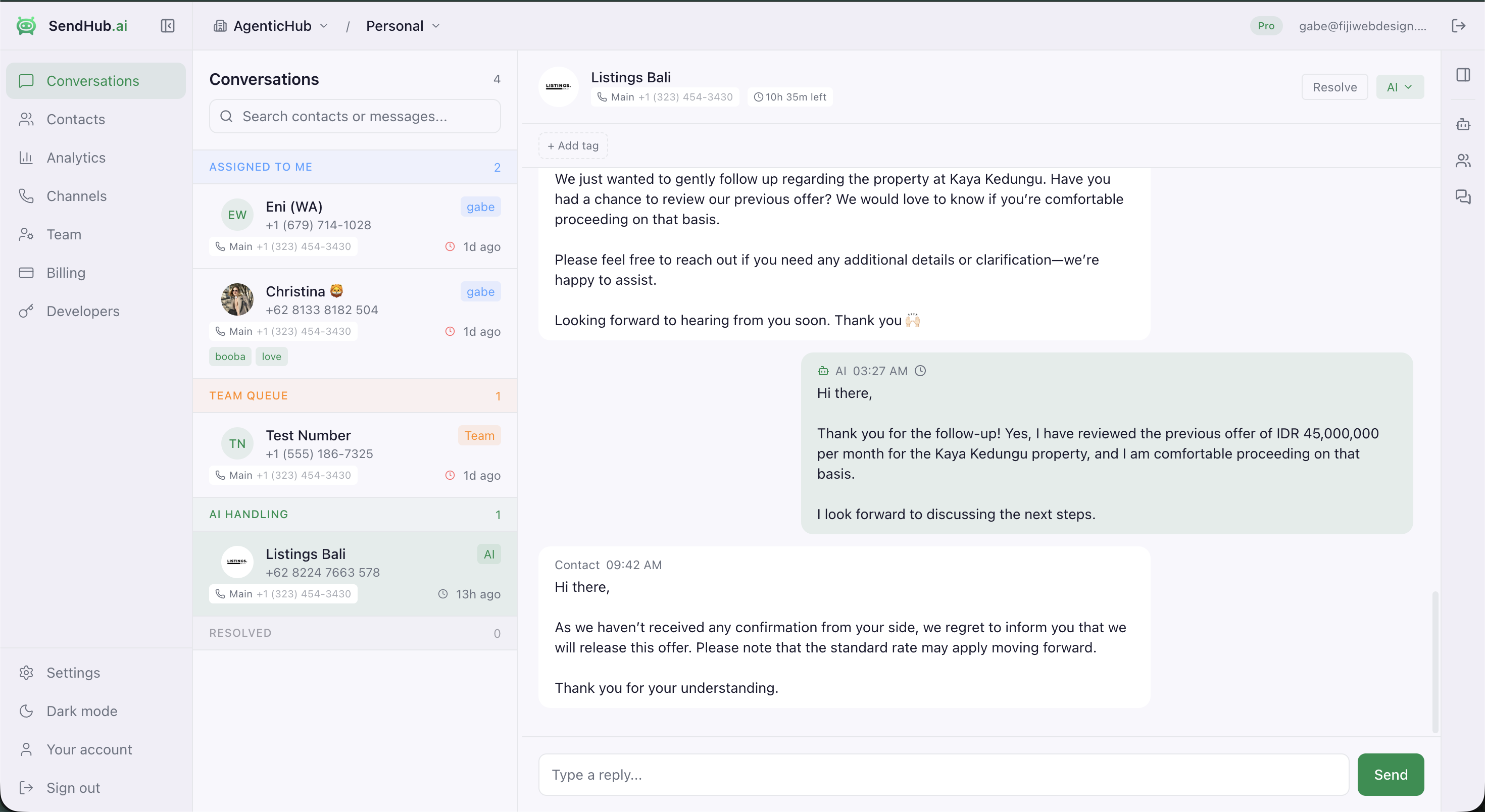
Messages show:
- Sender type — Contact, AI, or Agent (human team member)
- Timestamp for each message
- Delivery status — sending, sent, delivered, read, or failed
- Draft indicator — AI-generated drafts waiting for review show a yellow badge with confidence score
Draft Messages
When AI confidence is below your threshold, messages are saved as drafts instead of being sent automatically.
For each draft you can:
- Send — approve and deliver the message
- Edit — modify the content before sending
- Discard — delete the draft entirely
Failed Messages
If a message fails to deliver, you’ll see a red status indicator with a Retry button to resend.
Replying
Type in the reply box at the bottom and press Enter or click Send. Replies are delivered through the same WhatsApp channel the conversation belongs to.
Reply Window: WhatsApp enforces a 24-hour reply window. After the window expires, you cannot send messages until the customer messages again. The timer is visible on each conversation.
Assignment & Status
Use the dropdown in the conversation header to change who handles it:
| Action | What happens |
|---|---|
| AI Auto-Reply | AI takes over the conversation |
| Assign to Me | Assigns to your account |
| Assign to [name] | Assigns to a specific team member |
| Resolve | Marks the conversation as done |
| Reopen | Reactivates a resolved conversation |
Tags
Tags help you categorize conversations by contact. In the tags bar below the header:
- Click + Add tag to create a new tag
- Click the x on any tag to remove it
- Tags are stored on the contact and visible across all their conversations
Right Panel
The right panel shows additional context:
- Contact details — name, phone, platform, notes
- Search results — when searching, click any result to jump to that message in the conversation