Team Management
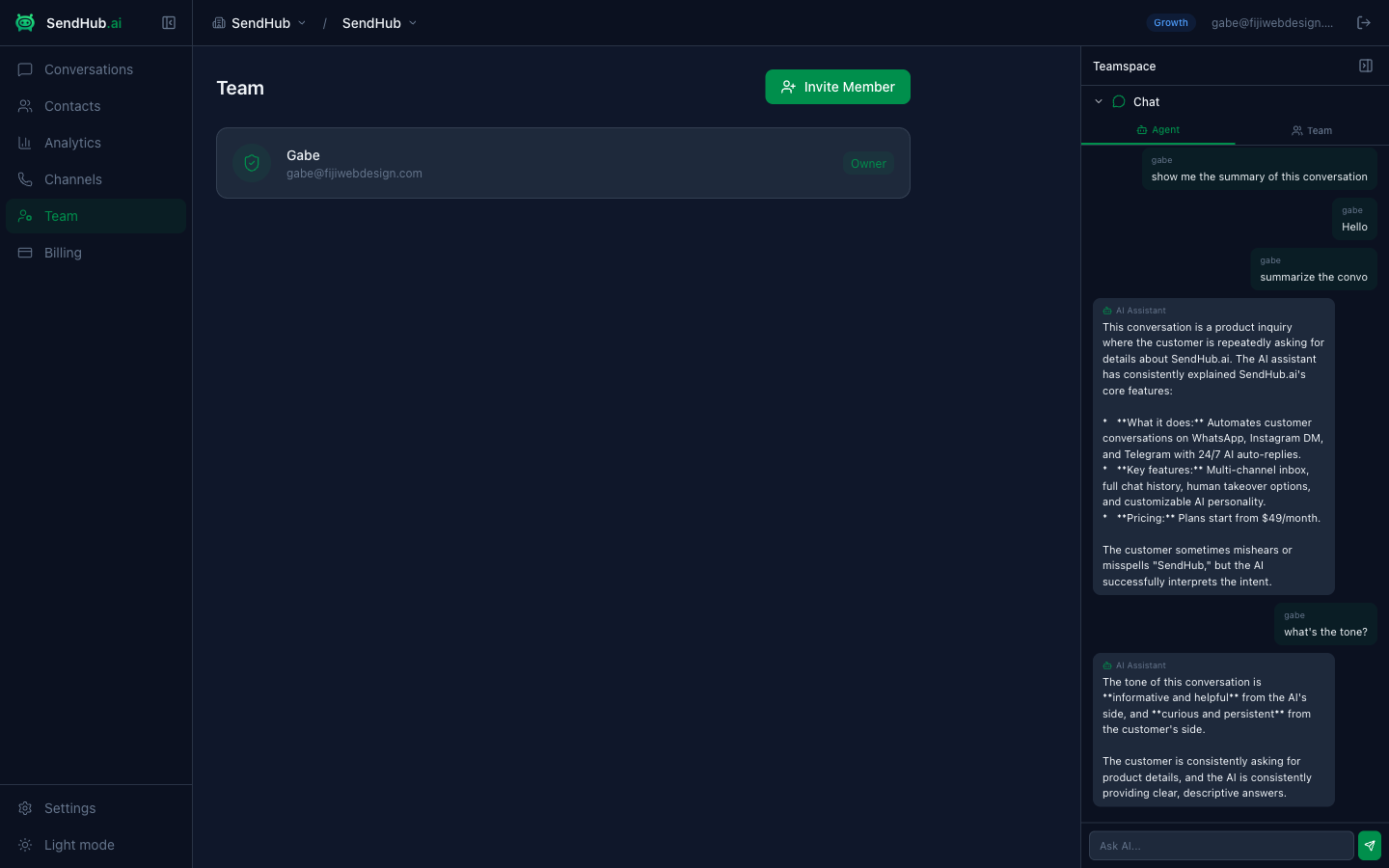
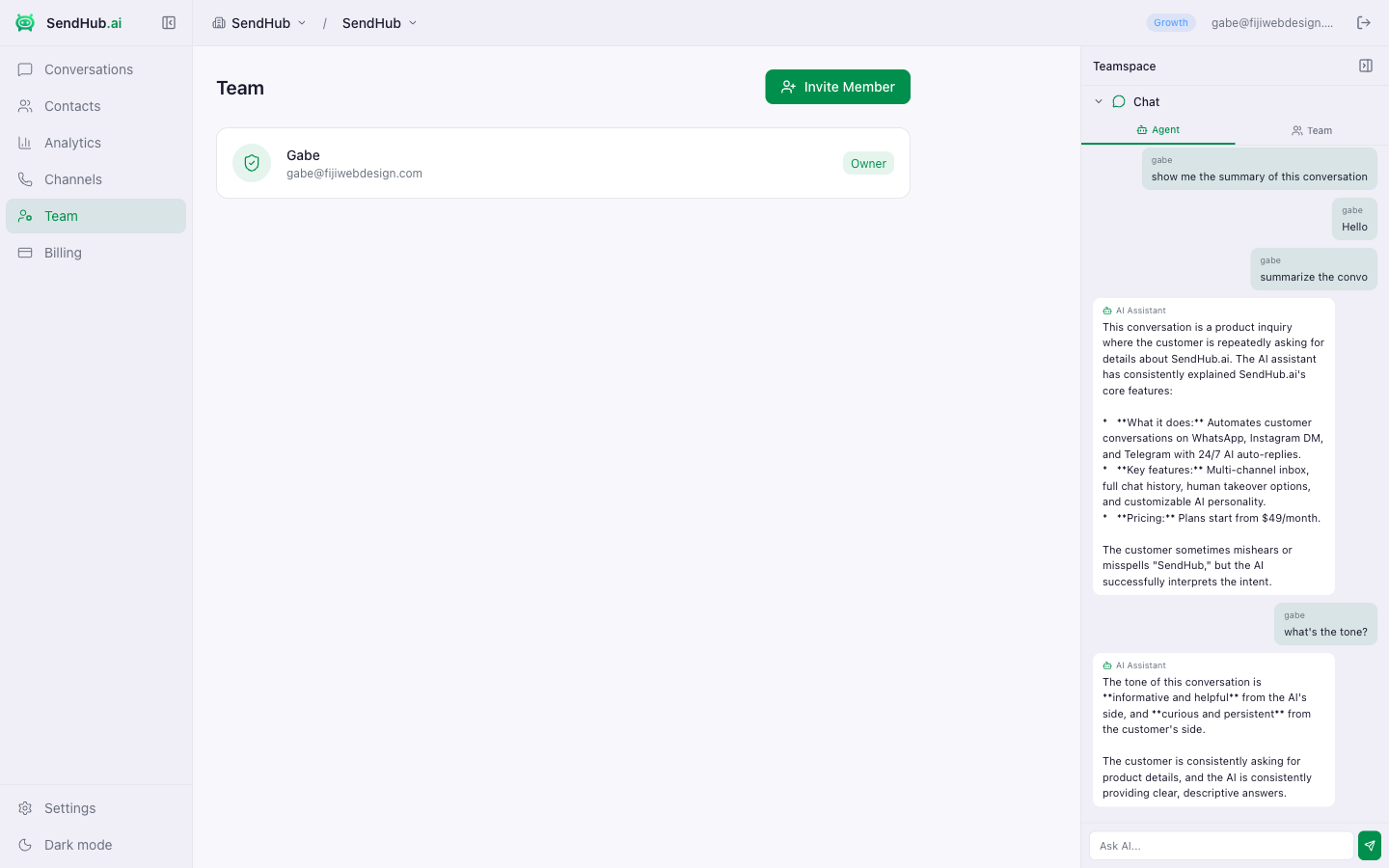
The Team page lets you manage who has access to your workspace and what they can do.
Inviting Members
- Click Invite Member
- Enter their name and email address
- Select a role:
- Admin — full access to all settings, channels, billing, and team management
- Agent — can view and respond to conversations, manage contacts
- Click Invite
The team member will receive an email invitation to join your organization.
Roles
| Role | Conversations | Contacts | Channels | Settings | Billing | Team |
|---|---|---|---|---|---|---|
| Owner | Full | Full | Full | Full | Full | Full |
| Admin | Full | Full | Full | Full | Full | Full |
| Agent | Full | Full | View | View | — | — |
Managing Members
Click any team member to view their details. Admins and owners can:
- Change role — switch between Admin and Agent
- Remove — remove the member from the organization
Assigning Conversations
Team members appear in the conversation assignment dropdown. When a conversation is assigned to a team member:
- They’ll see it with an “Assigned” status in the conversation list
- AI auto-reply pauses while a human is handling the conversation
- The assignee can resolve the conversation or return it to AI handling