Contacts
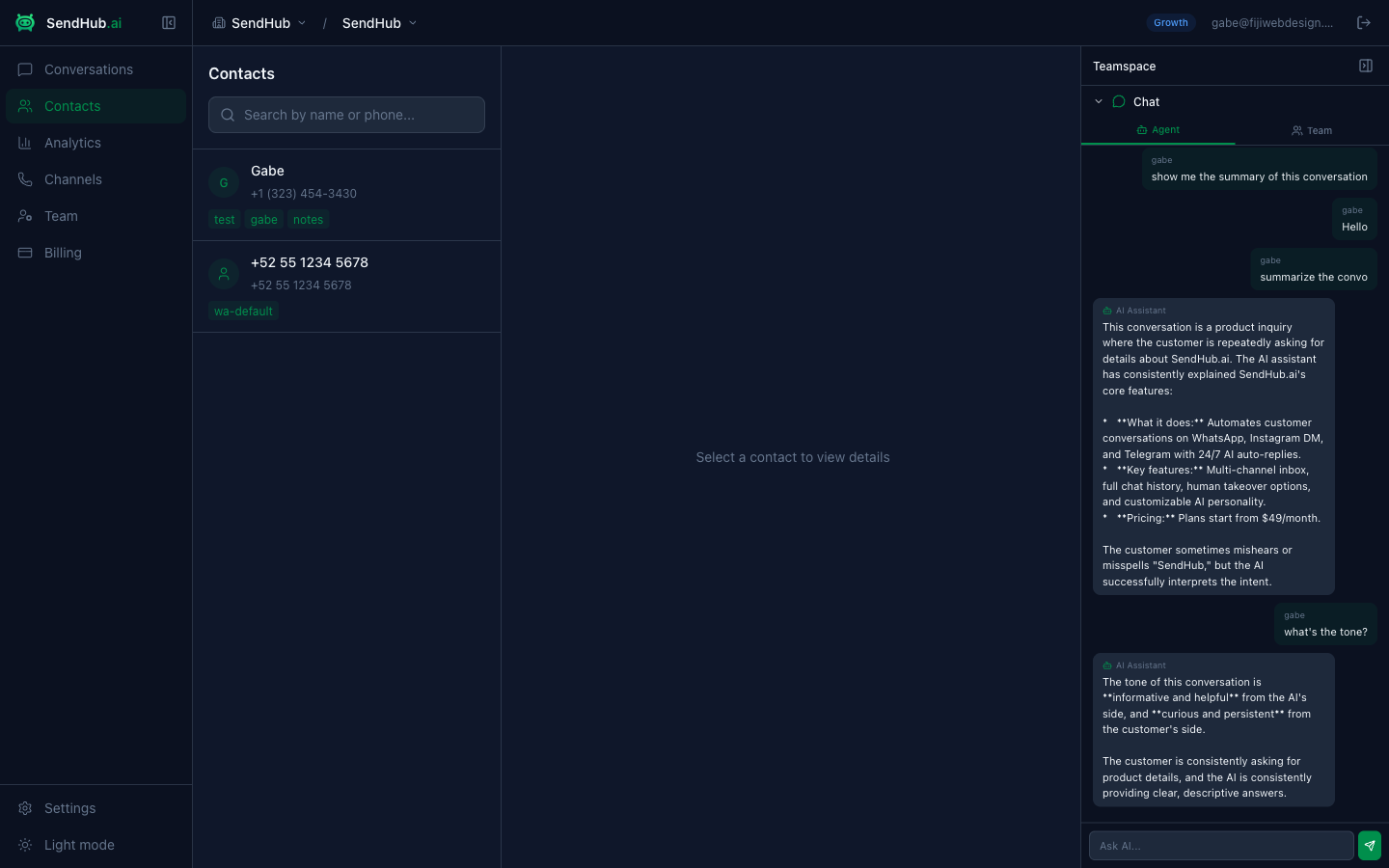
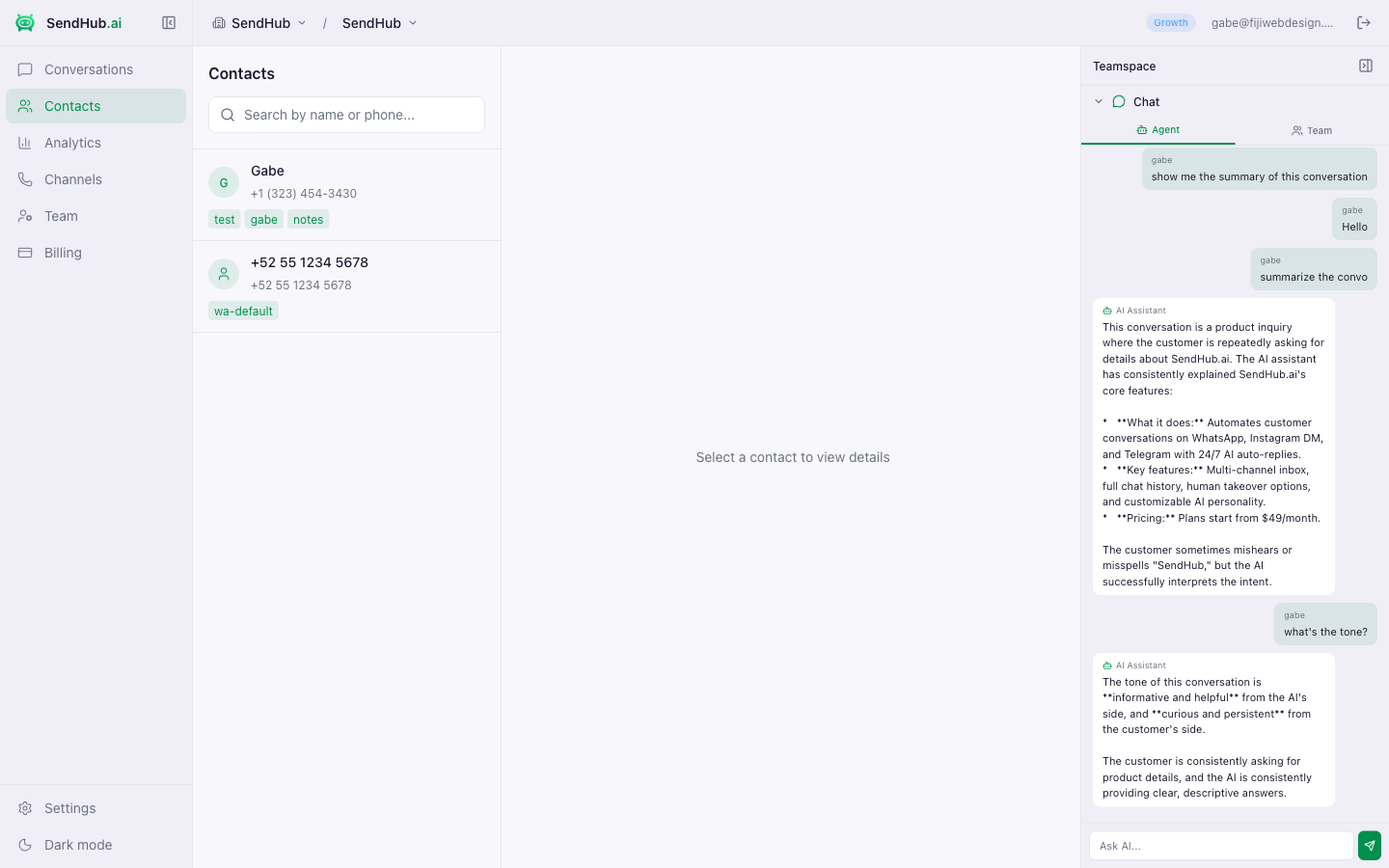
The Contacts page shows everyone who has messaged your WhatsApp numbers. Contacts are created automatically when a new conversation starts.
Contact List
Each contact displays:
- Avatar — generated from the contact’s name, or their WhatsApp profile picture
- Name — the contact’s WhatsApp display name (editable)
- Phone number — formatted international number
- Tags — colored labels for categorization
Searching
Use the search bar to find contacts by name or phone number. Search updates as you type.
Contact Details
Click any contact to open the detail panel on the right side.
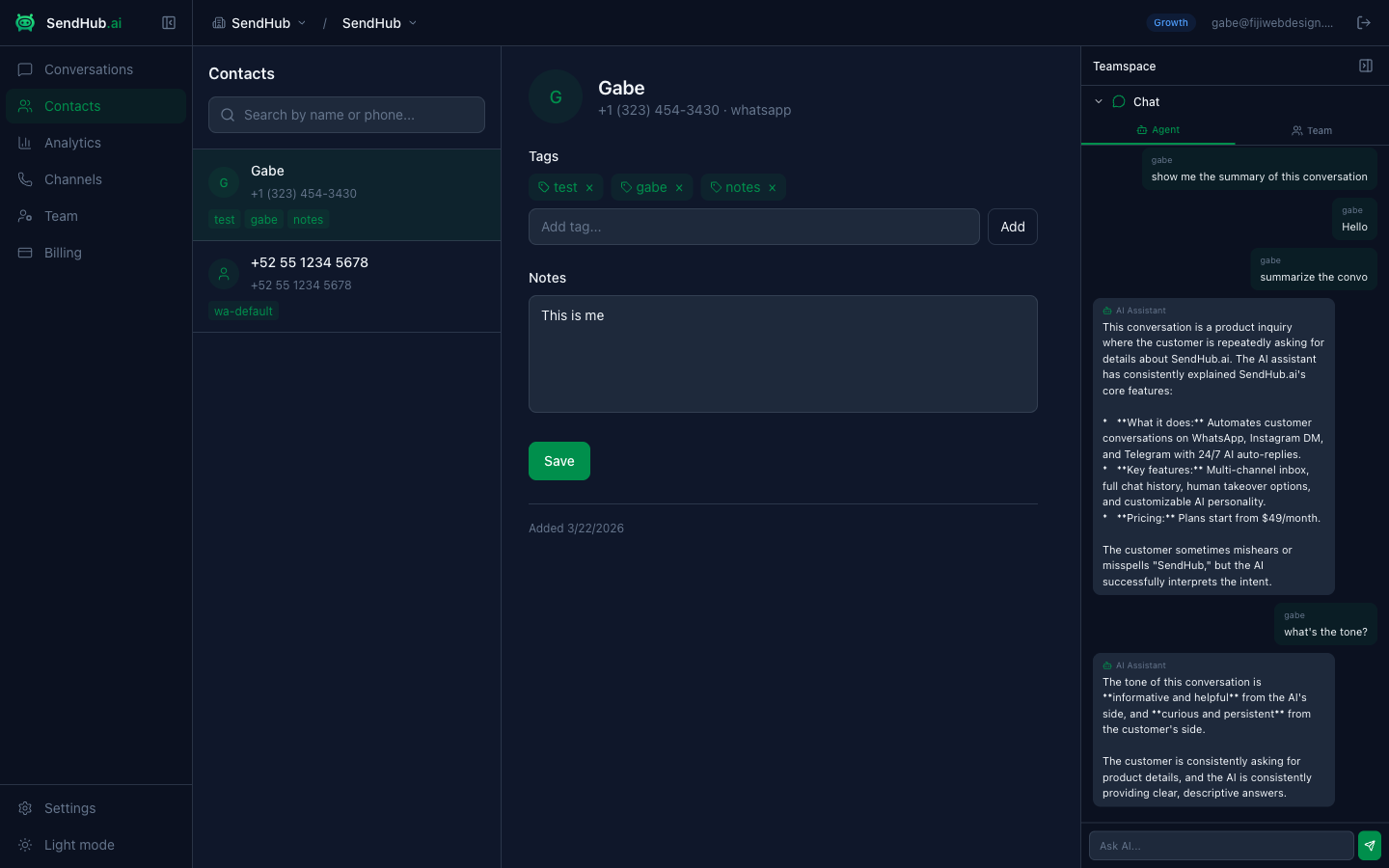
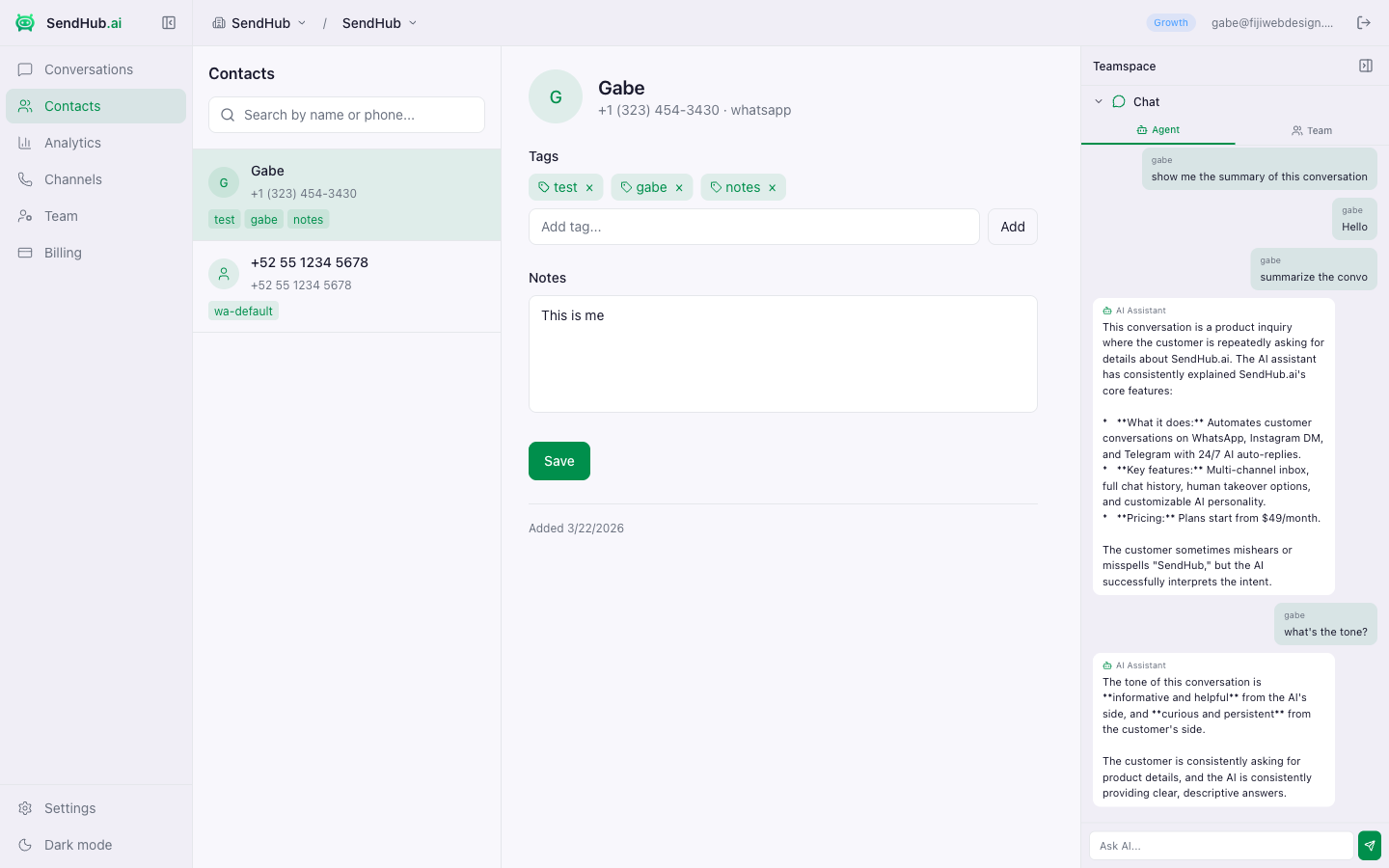
From here you can:
- Edit name — click the edit icon next to the name
- Add notes — free-text notes about the contact (auto-saved)
- Manage tags — add or remove tags
- View conversation history — see all conversations with this contact
Tags
Tags let you categorize contacts (e.g., “VIP”, “Lead”, “Support”). Tags are shared across conversations — adding a tag to a contact makes it visible in all their conversations.
To add a tag:
- Click + Add tag in the contact detail panel or conversation tags bar
- Type the tag name and press Enter
To remove a tag:
- Click the x button on the tag